1Before your first exam
Do this once on each venue PC, ideally the day before exams start. It takes about five minutes.
- Sign in. Open the Exam Timer website and click Sign in to your school. Use the email address your school registered: sign in with your password, or with Google if that address is a Google account. The first time, choose Create an account — we email you a 6-digit code to confirm the address. After signing in you go straight to the timer, with your school's name and subscription already on it.
- Install it as an app (recommended). In Chrome or Edge, click the install icon at the right of the address bar and choose Install. The Exam Timer then opens like any other program, straight to its setup screen, from the Start menu or a desktop icon.
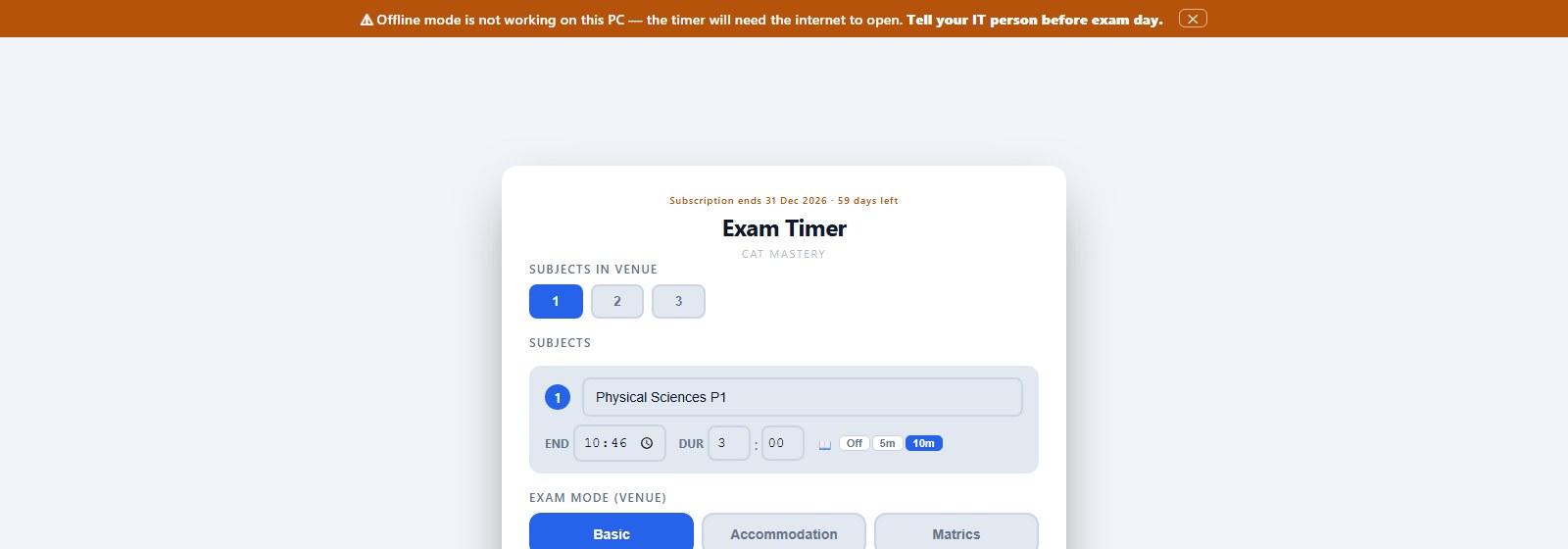
- Check it works offline. Open the timer once while connected. If an orange bar appears at the top of the screen (below), offline mode is not working on that PC — tell your IT person before exam day.
- Connect the projector and choose Duplicate or Extend display (Win + P on Windows). Press Test next to Sound alerts to check the speakers, then launch a test paper.
Once opened, the timer never needs the internet during an exam. A paper that is running keeps counting down even if the network, the website or the power to the router goes.
2Setting up a paper
Everything is on one card. Fill it in from top to bottom and press Launch Timer.
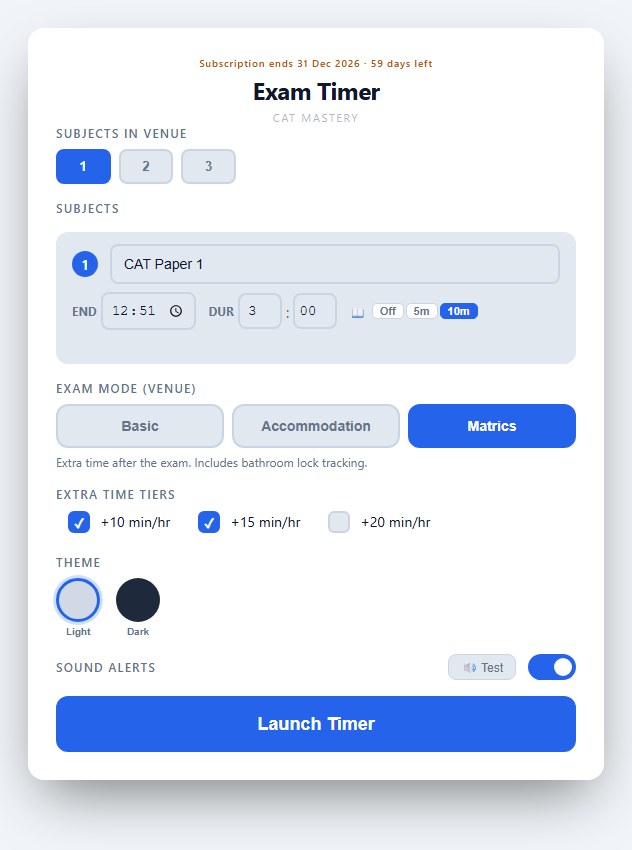
- 1Subscription line
How long your school's subscription still runs. Turns amber within 60 days and red within 30. After the end date the timer keeps working for 7 more days, then stops until the subscription is renewed. - 2Subjects in venue
How many different papers are written in this room — 1, 2 or 3. Each gets its own column on the projector. - 3Subject name
Exactly as it should appear on the projector, e.g. CAT Paper 1. - 4End time
When the standard paper ends, on the 24-hour clock. - 5Duration
Hours and minutes of writing time. The timer works out the start from the end time and the duration. - 6Reading time
Off, 5 or 10 minutes of reading before writing starts. - 7Exam mode
Basic, Accommodation or Matrics — see section 3. - 8Extra time tiers
Tick every concession group in this room: +10, +15 or +20 minutes per hour. Shown in Accommodation and Matrics mode only. - 9Theme
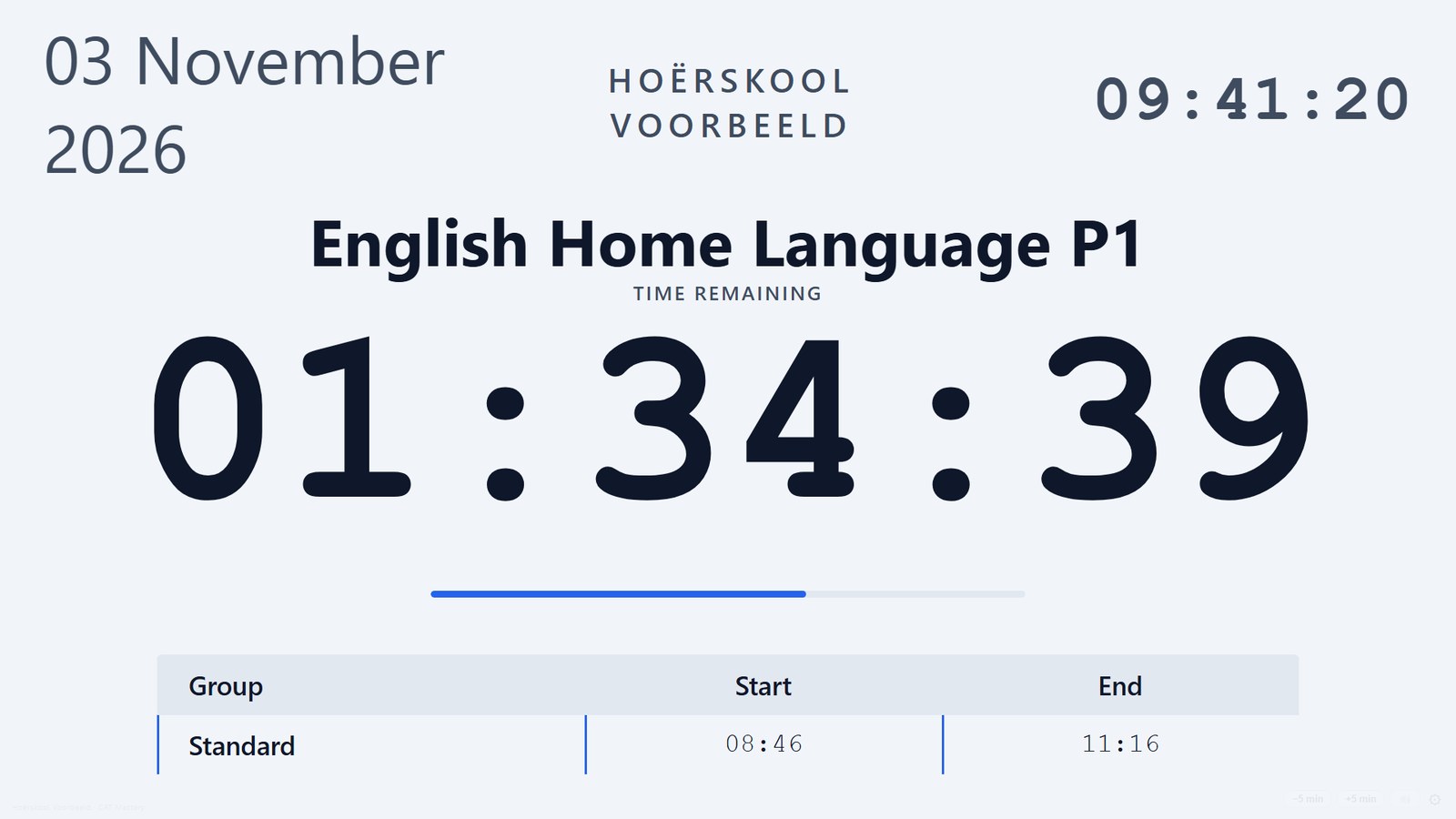
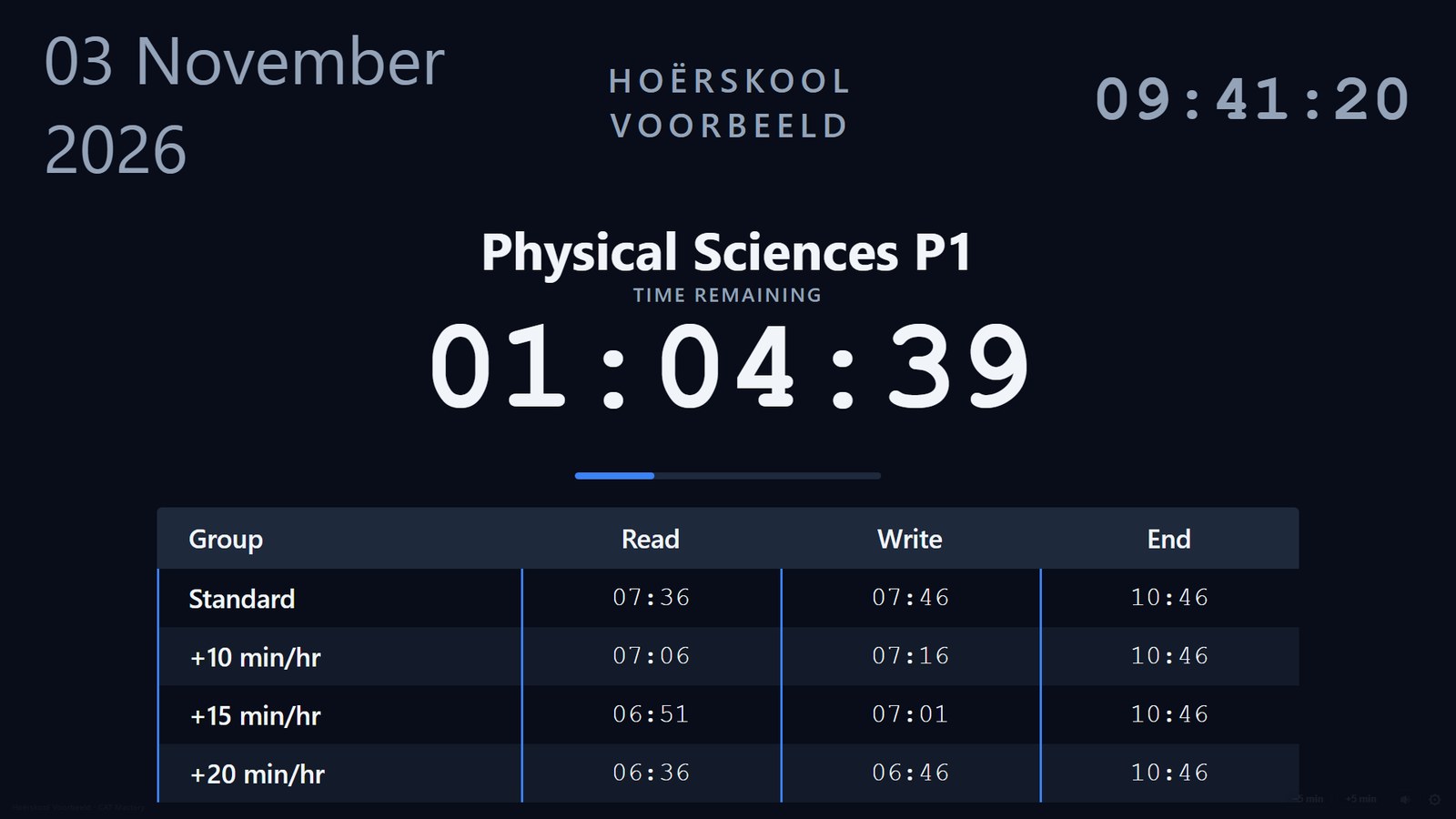
Light for bright halls, Dark for darkened rooms. - 10Sound alerts
Test plays the chime so you can check the volume; the switch next to it turns the chimes on or off. - 11Launch Timer
Starts the projector view in full screen.
The card remembers. Your mode, extra-time groups, theme and sound stay from day to day. Today's papers are remembered too, so if the timer is closed by accident it reopens with the same times — but on a new day the papers start blank, so yesterday's paper can never appear by mistake.
If an end time has already passed when you press Launch, the timer asks you to double-check first. That catches the most common slip: an afternoon time typed as a morning one.
3Choosing the exam mode
The mode decides how extra time works in this venue.
One start, one end
Everyone writes the same time. No extra-time groups, no bathroom tracking. For ordinary venues.
Extra time before
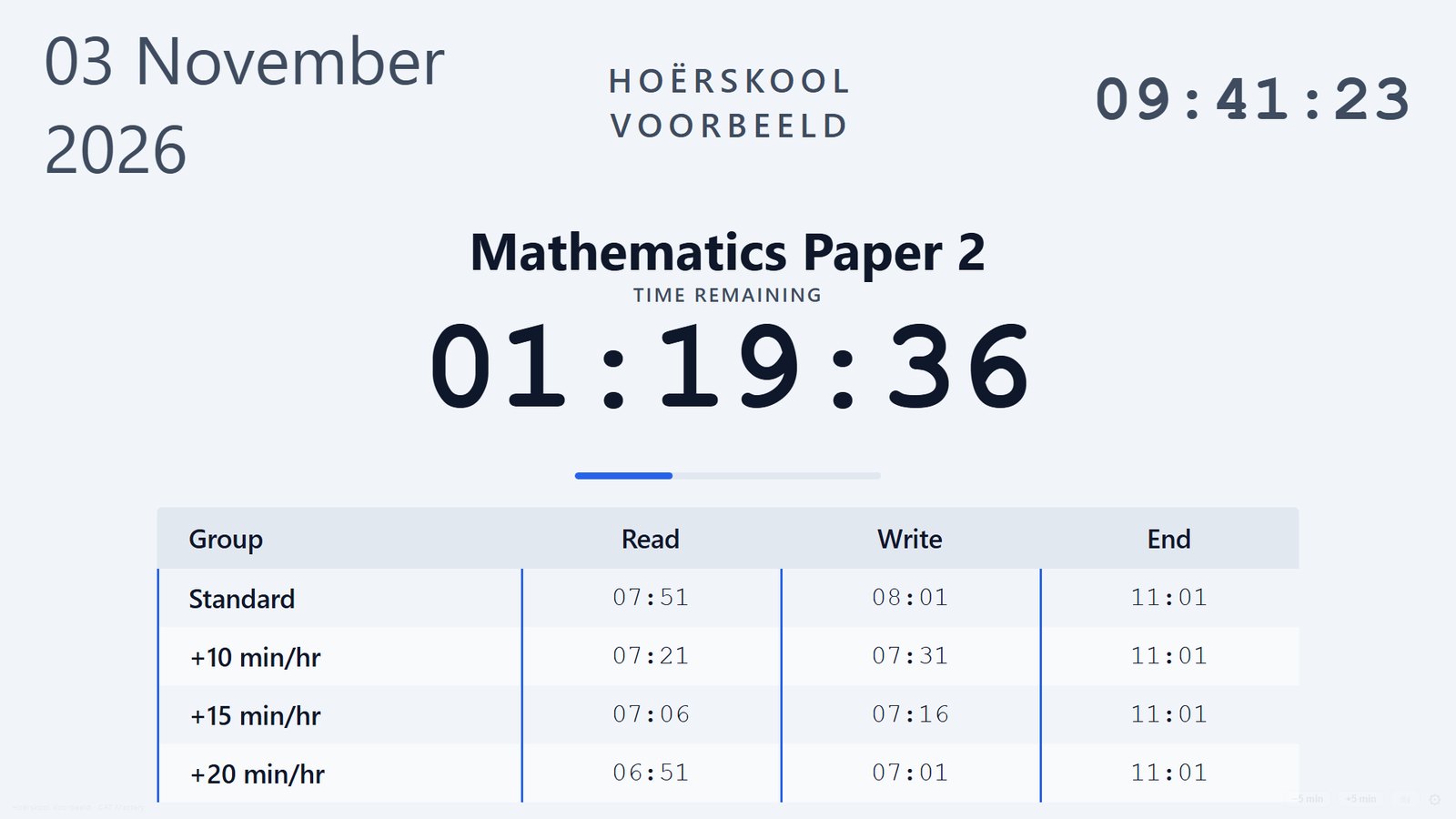
Concession groups start earlier and everyone finishes together. Each group gets its own start time on the schedule.
Extra time after
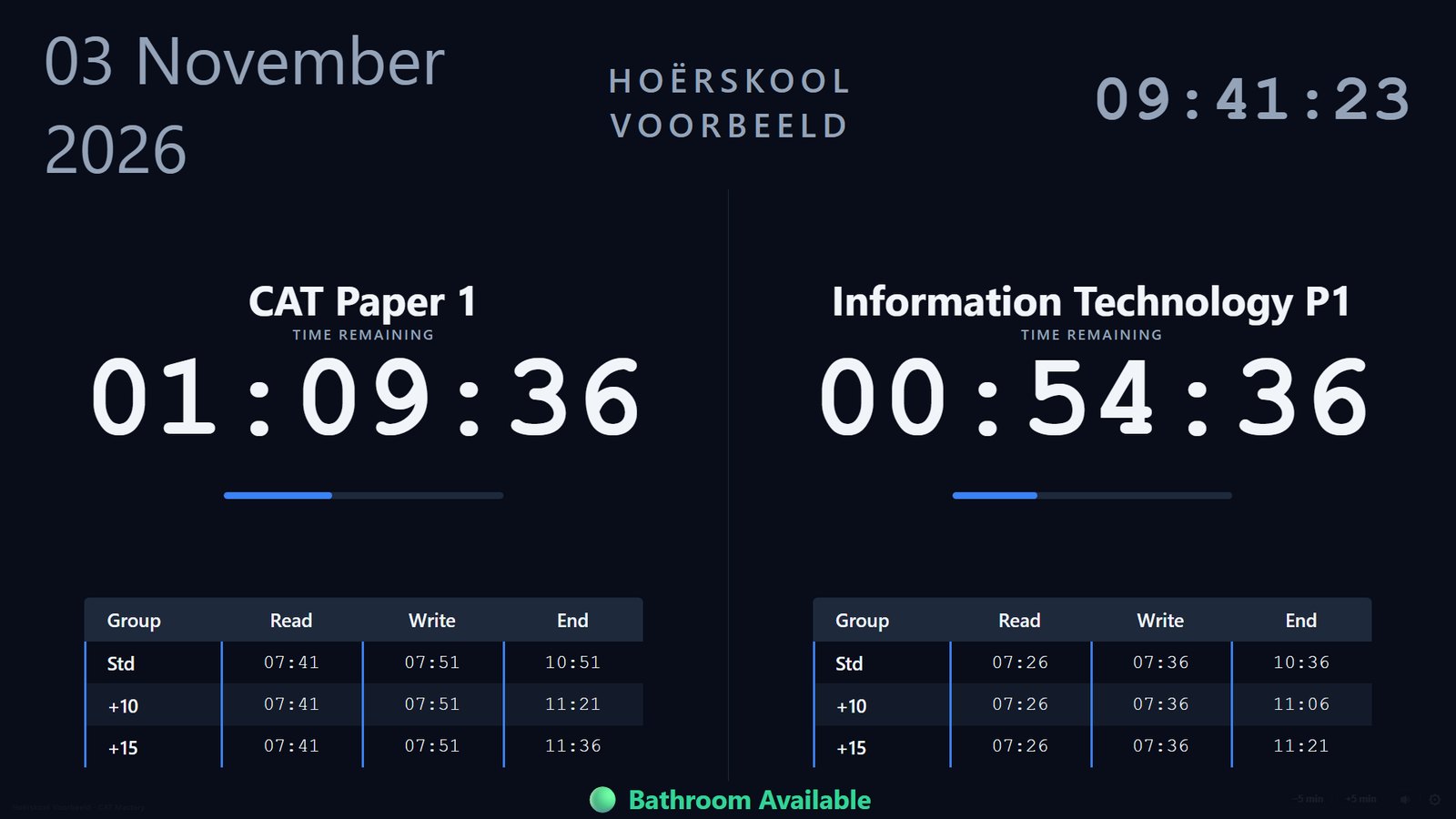
Everyone starts together; concession groups finish later. Adds the bathroom status line.
How extra time is worked out
Per hour of the paper. The minutes are rounded to the nearest whole minute.
| Group | 2-hour paper | 2½-hour paper | 3-hour paper |
|---|---|---|---|
| +10 min/hr | 20 min | 25 min | 30 min |
| +15 min/hr | 30 min | 38 min | 45 min |
| +20 min/hr | 40 min | 50 min | 60 min |
The bathroom status (Matrics)
The line at the bottom of the projector tells candidates whether they may leave the room:
- 🔴 Bathroom Locked for the first hour of a paper and its last 30 minutes (counted from the standard end, and it stays locked through the extra time).
- 🟢 Bathroom Available in between.
- With two or three papers in the venue it shows Locked whenever any of them is in a locked period.
4The projector screen
Designed to be read from the back row. Nothing on it needs touching during a normal paper.
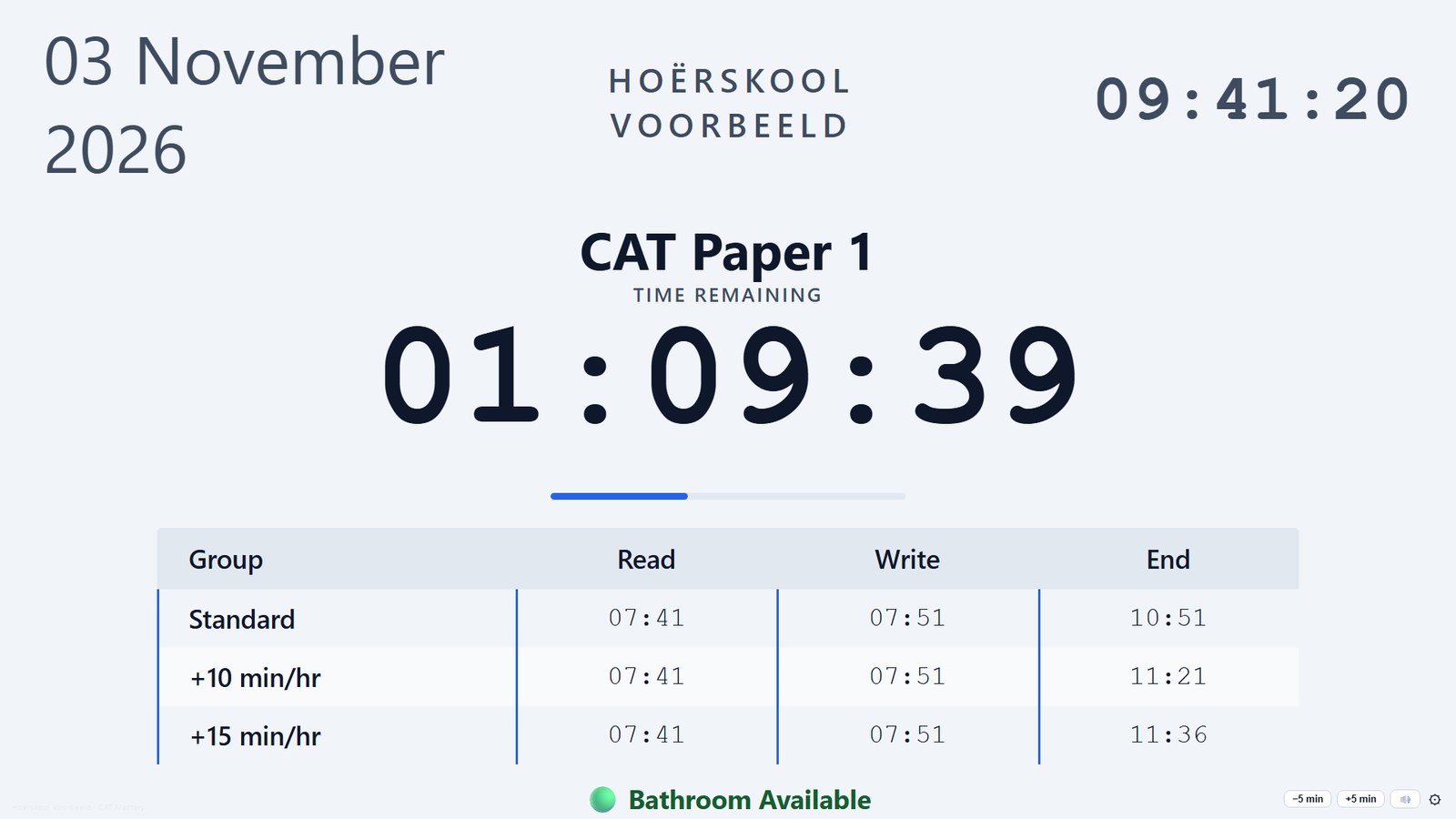
- 1Date
Today's date, always in view. - 2Your school
From your account. - 3Clock
The time of day, to the second. - 4Paper
The subject name, with what is happening underneath: Starts 09:00, Reading time, Time remaining. - 5Countdown
Time left in the current phase. - 6Progress bar
Time left in the current phase; the bar shrinks as the time runs out. - 7Schedule
Reading, writing and end times for every group. The group still writing is marked; finished groups fade out. - 8Bathroom status
Matrics mode only — see section 3. - 9Controls
Nearly invisible until you move the mouse there: −5 / +5 minutes, sound on/off, and ⚙ back to setup.
Light or dark
5Alerts during the exam
At every change the whole screen shows a large message for a few seconds, with a chime, then returns to the countdown on its own. You don't press anything.
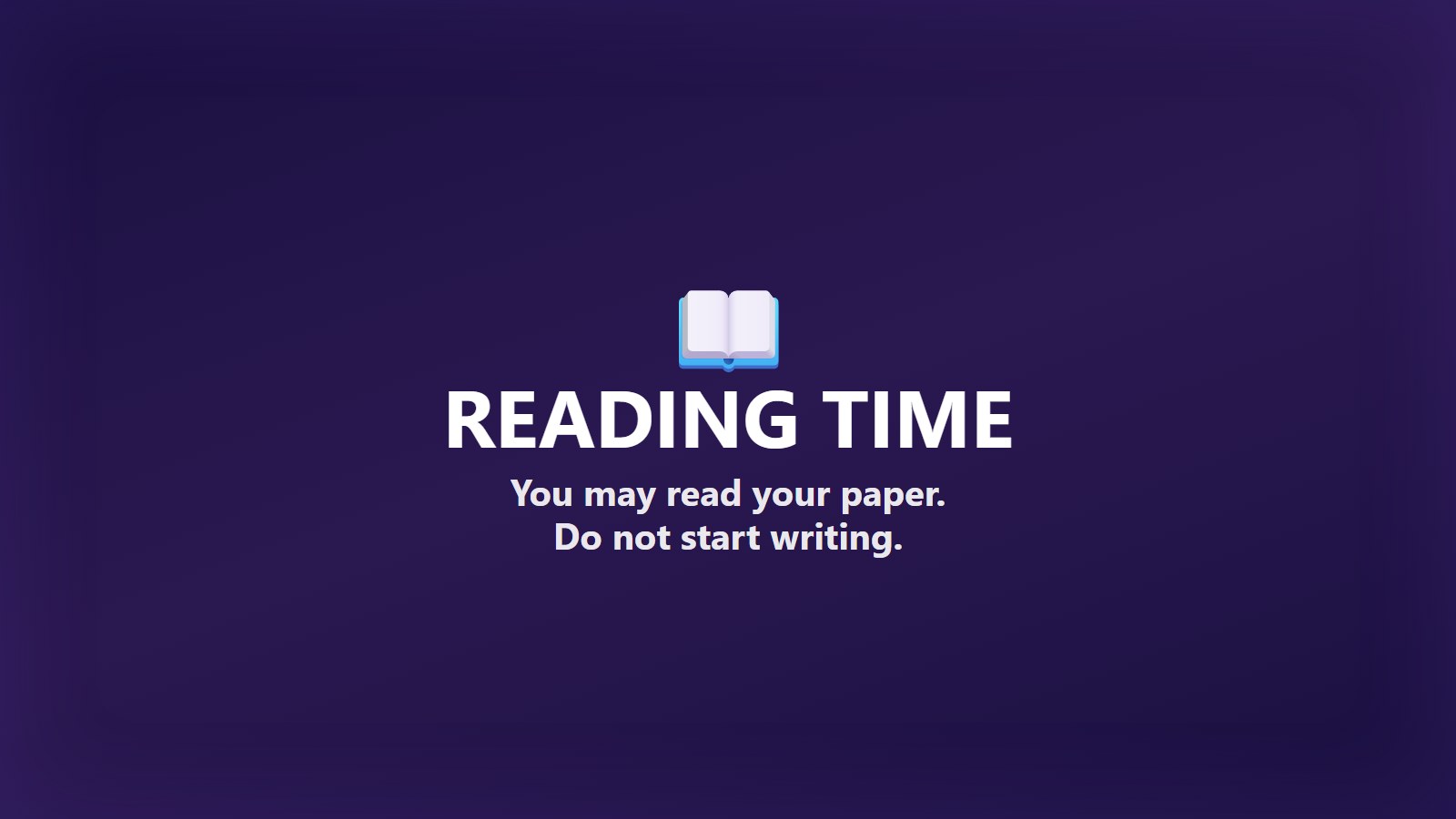
📖 Reading time
When reading starts, if reading time is on. Shows for about 4½ seconds.
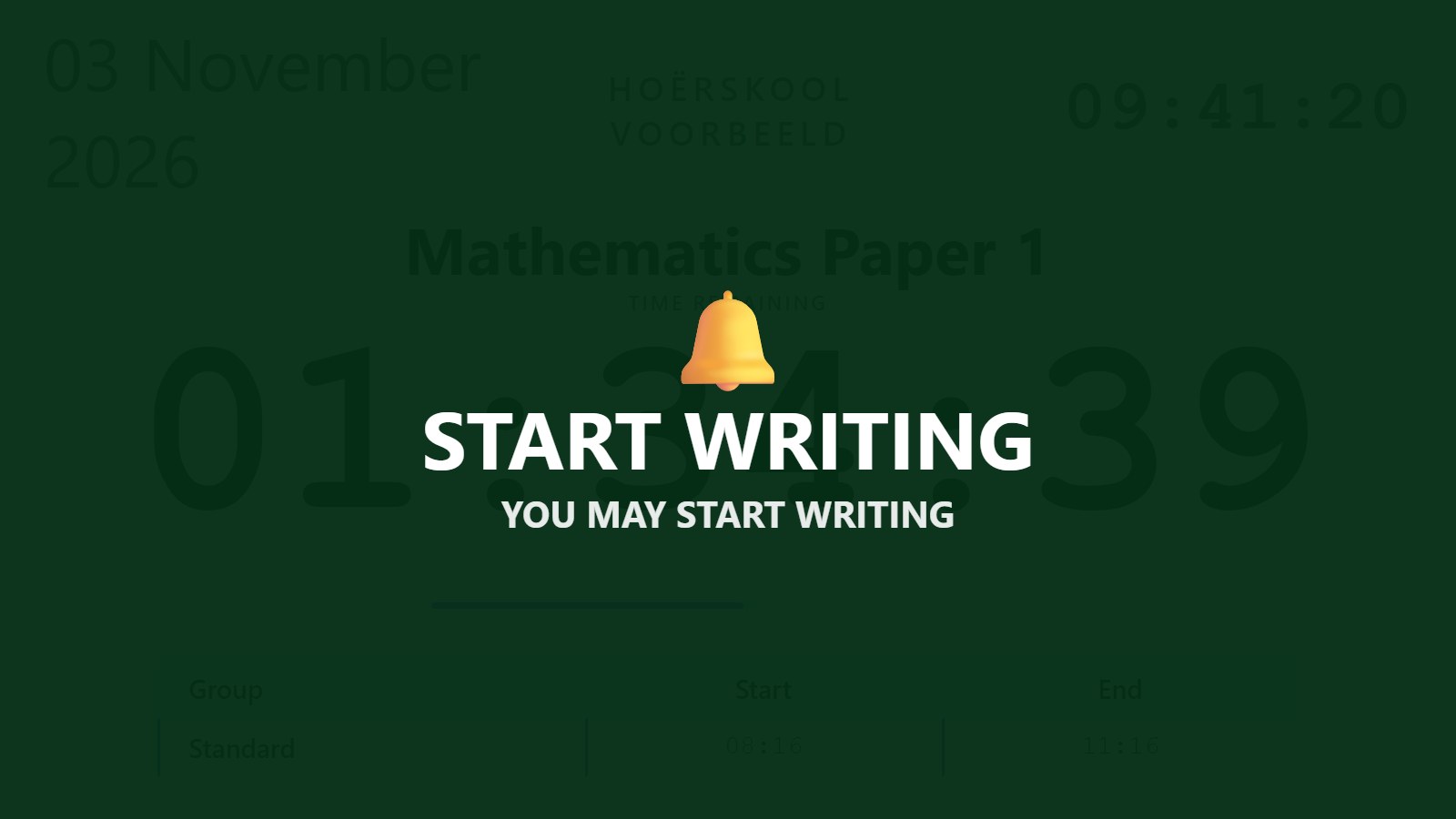
🔔 Start writing
When writing starts — per group in Accommodation mode.
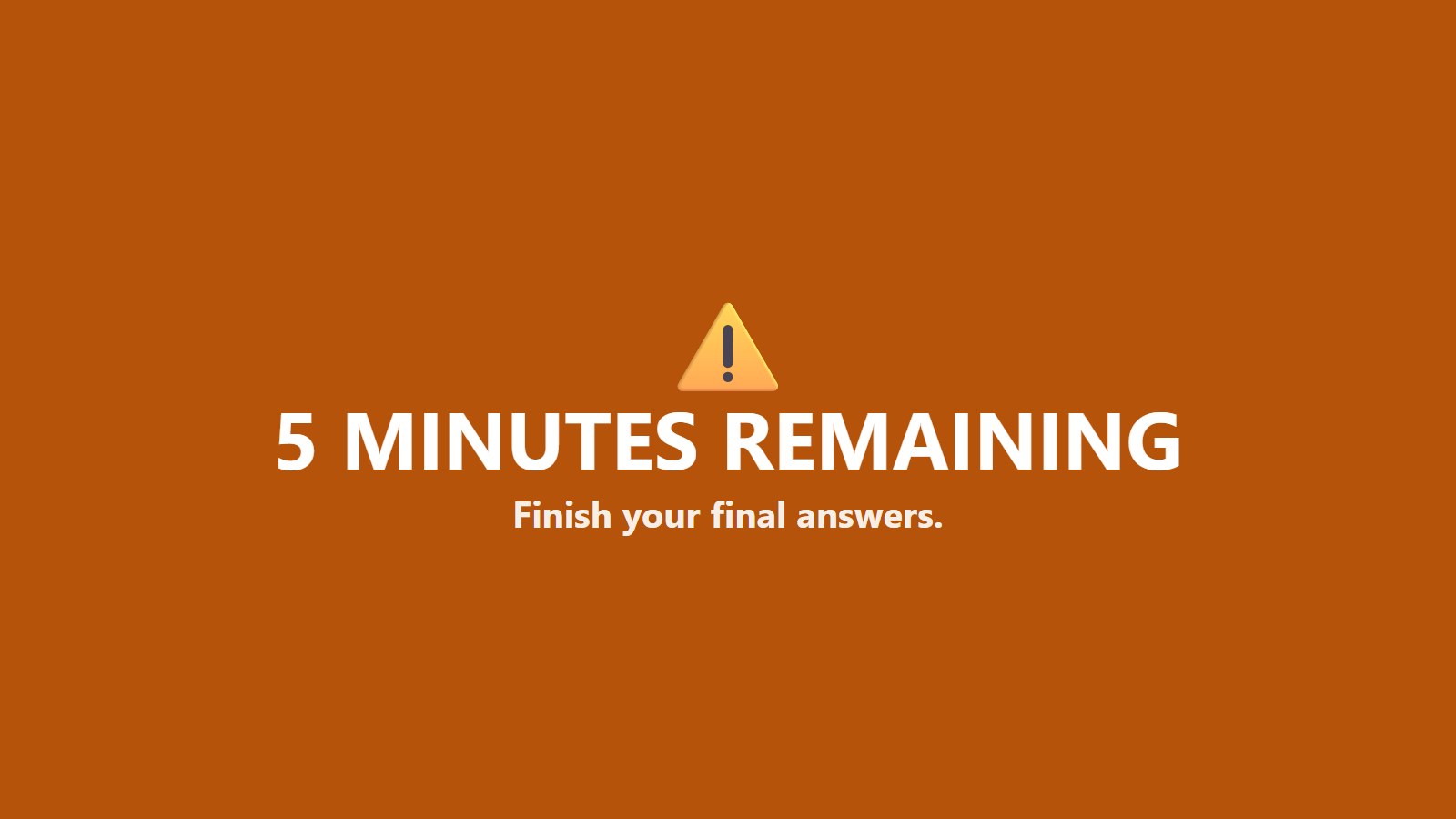
⚠ 5 minutes remaining
Five minutes before the end — per group in Matrics mode.

🛑 Time is up
At the end — per group in Matrics mode, everyone at once in the others.
Need silence? Press M (or the speaker button in the controls) to turn the chimes off. The on-screen messages still appear.
6Several papers in one venue
Choose 2 or 3 under Subjects in venue and fill in each paper. They run side by side, each with its own countdown, schedule and alerts.
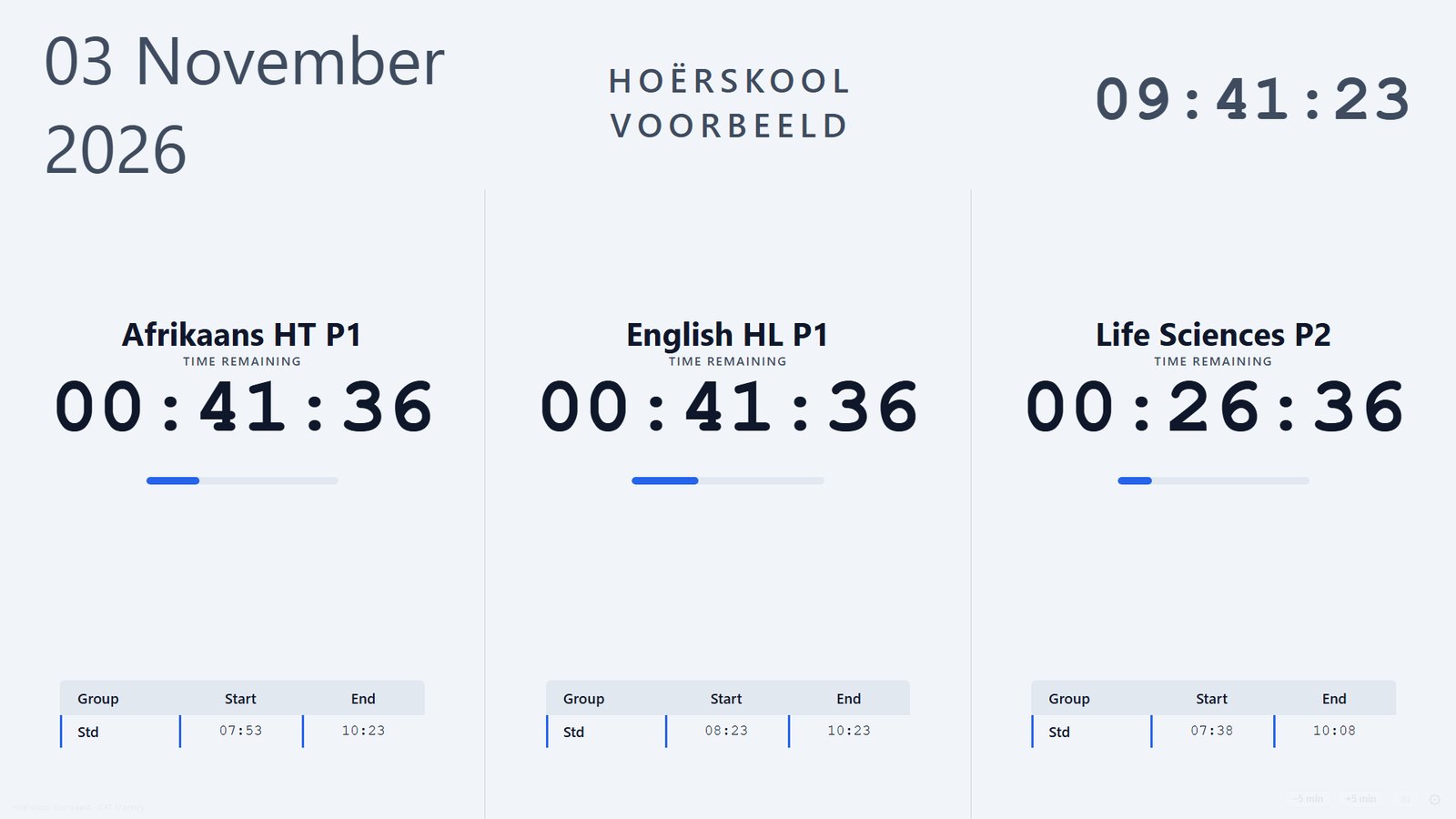
Different lengths are fine: papers can end at different times. Put the paper that finishes first on the left if you can — candidates read the screen from left to right.
7When things go wrong
The timer is built for bad days. Here is what to do in each case.
A fire drill, power dip or other disruption
Move the mouse to the bottom-right corner of the projector screen and click +5 min once for every five minutes lost. Every finish time still to come moves with it; a group or paper that has already finished stays finished. −5 min takes five minutes off again — but never so much that a paper still being written would end.
The adjustment is remembered: if the timer is closed and reopened the same day, it comes back with the extra minutes and says so on screen.
The timer was closed by accident, or the PC restarted
- Open the Exam Timer again (the app, or the website).
- Today's papers are still filled in. Check them and press Launch Timer.
- The countdown carries on from the real time — nothing is lost, including any +5 minutes you added.
The internet goes down
Nothing happens. A running paper never needs the internet, and a PC that has opened the timer before can open it again with no connection — from the installed app, or a bookmark of the timer page itself (its address has /timer/ in it). The website's home page and this guide need the internet.
You need to change something mid-exam
Press Esc (or ⚙ in the controls). The timer asks before it leaves the projector view, so a stray key can't end an exam. Make the change and launch again — the countdown picks up from the real time.
8Keyboard shortcuts
These work while the projector view is showing.
| Key | What it does |
|---|---|
| F | Full screen on or off |
| M | Sound on or off |
| Esc | Back to the setup card (asks first) |
9Questions and fixes
I don't have a password / I forgot it
Click Sign in to your school. The first time, choose Create an account with the email address your school registered — we email you a 6-digit code to confirm it. If you forgot your password, choose Forgot password? and follow the link in the email. You never need a Google account.
The Launch button says “Sign in to continue”
This PC has no current subscription on it yet, or the subscription ended more than 7 days ago. Press the button, sign in with your school account, and you are back on the timer. Each PC needs the internet for that one sign-in; after that it runs offline.
A red banner says the subscription has ended
The timer keeps working for 7 days after the end date, and the banner shows the last day. In the last 3 of those days a message asks you to Renew or Ignore each time the timer opens; Ignore simply carries on to the timer. Once the subscription is renewed, the PC picks it up by itself the next time it opens the timer with internet. Nothing needs to be re-installed. The banner and the message only ever appear on the setup card, never on the projector.
It says the date on this PC looks wrong
The PC's clock is set to an earlier date than it had before. Correct the date and time in Windows (or turn on “Set time automatically”), then reload the timer.
The school name or the "days left" line is missing
Both come from your school's subscription. Sign in on the website once and the timer shows them; after that they stay on that PC, even offline and in the installed app, and update themselves whenever the PC is online.
An orange bar says offline mode is not working
That browser can't keep its offline copy — usually a private/incognito window or a locked-down browser. Open the timer in a normal Chrome or Edge window, or ask your IT person. The timer still works while connected.
There is no sound
Press Test on the setup card. If you hear nothing, check the PC's volume and the projector's speakers, and that sound wasn't switched off with M.
It says an end time has already passed
Check the time is on the 24-hour clock — 14:00, not 2:00. If the paper really is under way already (you are relaunching), confirm and it continues from the real time.
A group's time looks wrong
Check the duration and the ticked groups on the setup card: the extra time is the per-hour rate × the length of the paper (see the table in section 3). Launch again after a fix — nothing else needs resetting.
Can we use it in several venues at once?
Yes. Open it on as many PCs as you have venues; each one runs its own papers.
Does the timer collect any information about learners?
No. It never sends learner data anywhere. The only thing it checks online is your school's subscription; papers, times and settings stay on the PC that uses them.
Who do we contact?
CAT Mastery, for accounts, subscriptions and any fault in the timer: email us at catmastery.sa@gmail.com with your school's name.